
YOUR MUSIC, ALWAYS WITH YOU.
EMMU Score Complete Guide
Your music.
More freedom.
Import. Annotate. Listen. From daily practice to the stage, keep your scores on the device you use every day.
Get startedFor smartphones and tablets. This guide focuses on the spacious tablet experience.
Keep your scores in one place.
Bring today’s discoveries to your next performance.
Saved scores are available offline.
CHOOSE YOUR NEXT STEP
What would you like to do today?
Open a heading for steps and details. Screenshots use demo data. Appearance and available features may vary with your device, app version, and subscription.
No matching operation found.
Try a short term such as annotation, save, or sign in.
GET STARTED
Start with one score.
Import scores, make them easier to read, and keep your practice notes in EMMU Score. Use your smartphone or tablet. A tablet gives you more room for the score and controls together.
Open your first score
- Open the app and read the terms and privacy policy shown on screen.
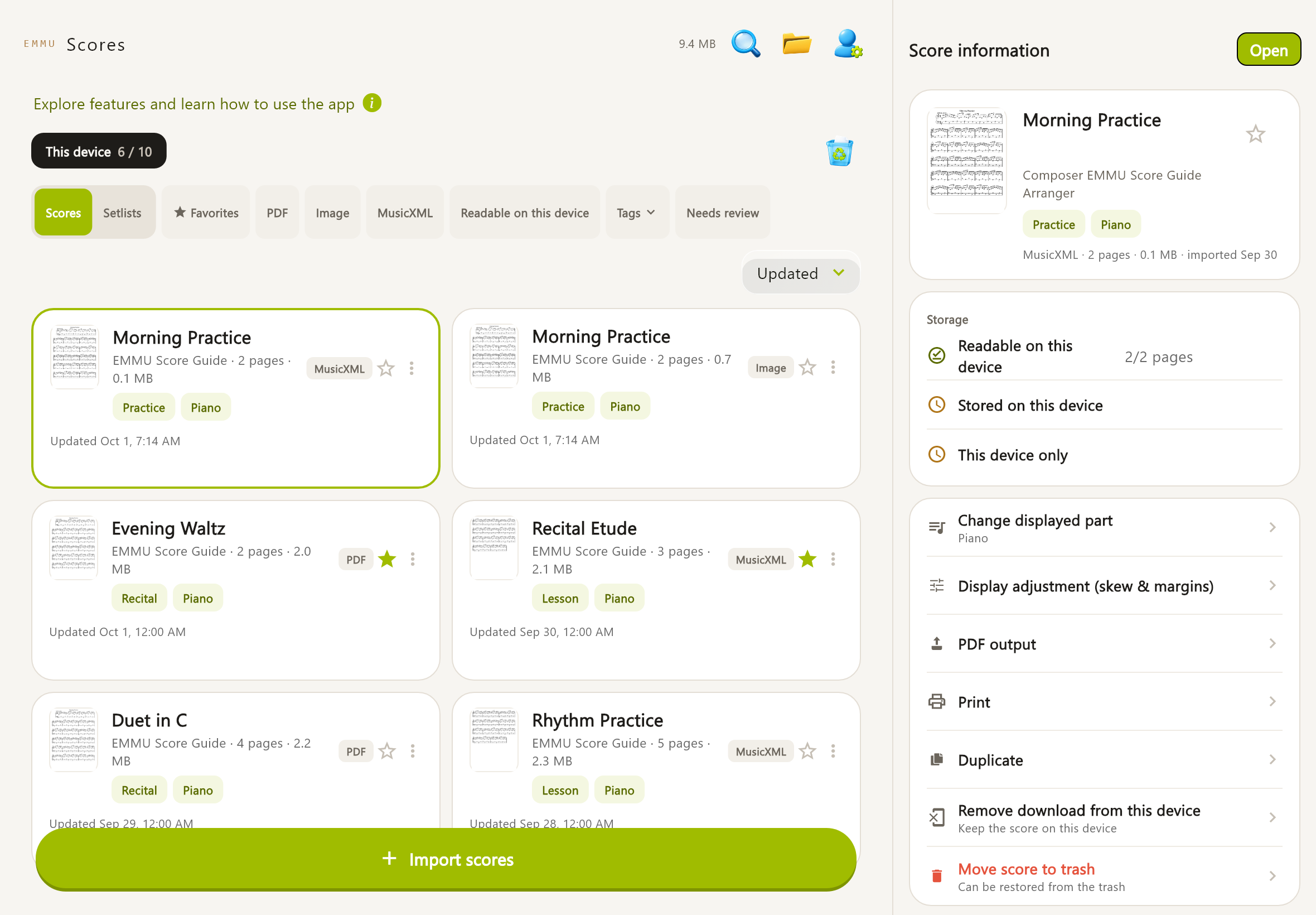
- In the score library, choose Import scores, then PDF, Images, or MusicXML.
- Review the import, save it, and open the score from your library.
- Choose Full screen and a display mode that suits your practice.
Try it without an account
Without registering, you can store up to 10 scores and 100 MB on this device. Try reading and annotating first. A free account allows up to 30 scores and 300 MB.
Learn with sample scores
Use Samples in the library to show or hide the bundled scores. You can view, play, export, and print samples. Import your own scores to annotate them or edit their details.
Use your tablet and phone together
- Tablet: compare the library and score details, read two pages, and annotate with a pen.
- Phone: find scores, check your music on the go, and review practice notes.
- To keep scores in sync across your own devices, set up a paid personal cloud plan.
IMPORT
Bring the scores you already have.
Import PDFs, images from your photo library, and MusicXML. MusicXML is a score data format used to exchange music between notation programs. Its note data enables part selection and audio playback.
Import PDF or images
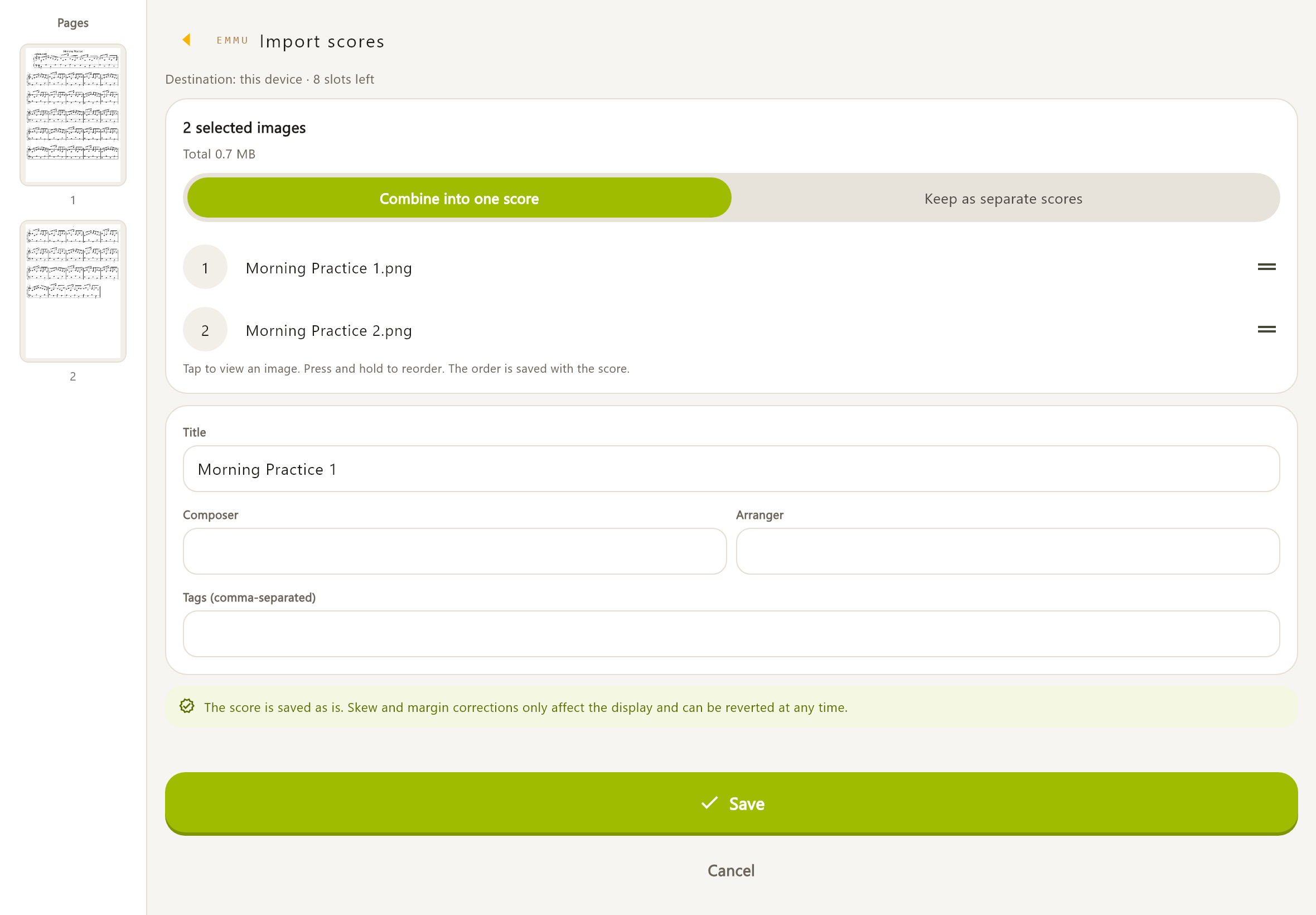
- Choose Import scores, then PDF or Images. Select images from your photo library.
- Tap images to enlarge them and long-press to reorder them. Choose whether to combine them into one score or save separate scores.
- Enter a title and, optionally, composer, arranger, and tags. Save the import. Separate scores use their file names as titles.
Import MusicXML
- Choose MusicXML and open a .musicxml, .xml, or .mxl file.
- If there are multiple parts, choose all parts or the parts you need.
- The app reads the title and composer from the file. You can change the displayed parts later.
Keep in mindIf some content cannot be rendered, read the explanation. You may be able to save only the source file. Saving it does not guarantee that the score can be displayed or played.
Duplicates and password-protected PDFs
- If the same score already exists, open the existing score or save a separate copy.
- Enter the password when prompted. Remember it on this device to avoid entering it again.
- Saved PDF passwords are not transferred to other devices. Enter the password again on each device.
Supported files and size limits
| Type | Formats | Limit per file |
|---|---|---|
| 100 MB | ||
| Images | JPEG, PNG, WebP, HEIC, HEIF | 25 MB / 50 megapixels |
| MusicXML | .musicxml, .xml, .mxl | 20 MB |
Keep in mindThe input limits are up to 200 pages and 300 MB in total per score. Your plan’s storage limit and free device space also apply. Some image formats require device support. The app does not automatically convert PDFs or photos into note data.
YOUR LIBRARY
Find the music you want to play.
Search by title, composer, or tag, and filter by favorites or file type. On a tablet, check storage status alongside your selected score.
Search, filter and sort
- Open Search with the magnifying-glass button, then enter a title, composer, or tag.
- Filter by favorites, PDF/images/MusicXML, availability on this device, tags, or items needing review.
- Sort by title, update time, or import time. Clear the search and filters if a score is missing.
Edit score details
Choose Edit in score details to change the library title and tags. For PDFs and images, you can also record work title, subtitle, movement, composer, lyricist, arranger, copyright, and source. Separate tags with commas.
Keep in mindLocked fields taken from MusicXML cannot be edited here. Update them in the original notation program and import the file again. The library title and tags remain editable.
Favorites, copies and storage status
- Tap the star to add a favorite.
- Duplicate creates a separate score; it also uses storage and counts toward your score limit.
- Score details show device storage, cloud storage, and annotation sync status.
- Use Check for updates to check changes. Scores already saved on the device remain available if the connection fails.
READ COMFORTABLY
More score. More focus.
Turn pages, scroll vertically, or expand the score to fill the screen. Choose a view that suits your music and practice.
Move between pages
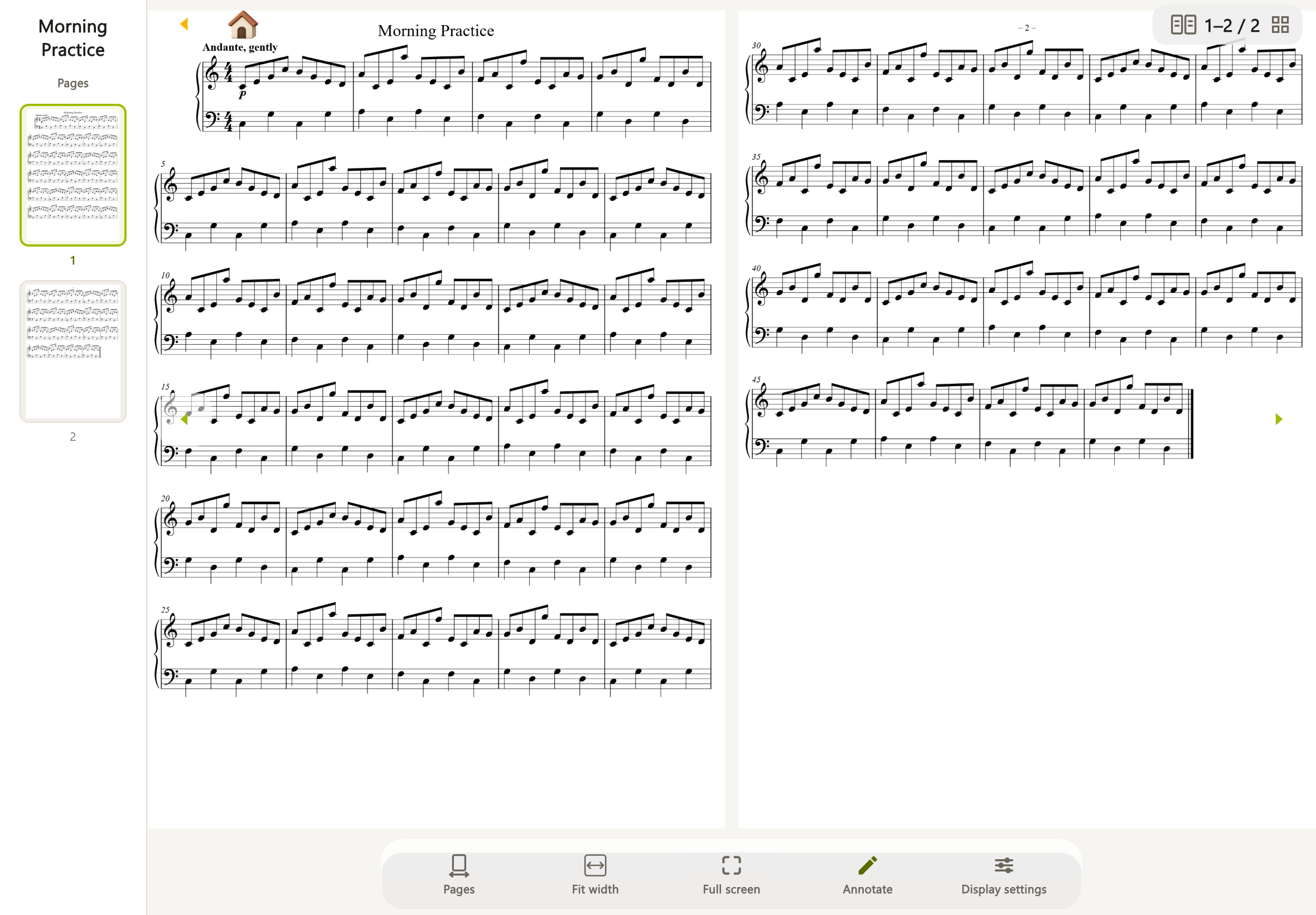
In page mode, move forward or backward. In scroll mode, move the score with your finger. Use the page thumbnails to jump directly to a page. Pinch with two fingers to zoom.
Fit the score to your screen
- Fit width enlarges the score to the screen width.
- Fit page shows the whole page.
- Full screen enlarges the score; return to the normal view when needed.
- Page mode on a landscape tablet normally shows two pages and can switch to one. Portrait and vertical scrolling use one page width.
- Where the rotation button is available, rotate the score in 90-degree steps.
Scroll horizontally with MusicXML
Choose page, vertical scroll, or horizontal scroll for MusicXML. Horizontal mode joins the music into a continuous line. The second look-ahead row shows what comes next. During playback, the score advances automatically, so you can practice on a phone without turning pages. Choose Fit height or Default for the scale.
MAKE IT READABLE
Make every page easier to read.
Trim margins to enlarge the music, or correct the angle and brightness of a photographed page before practice.
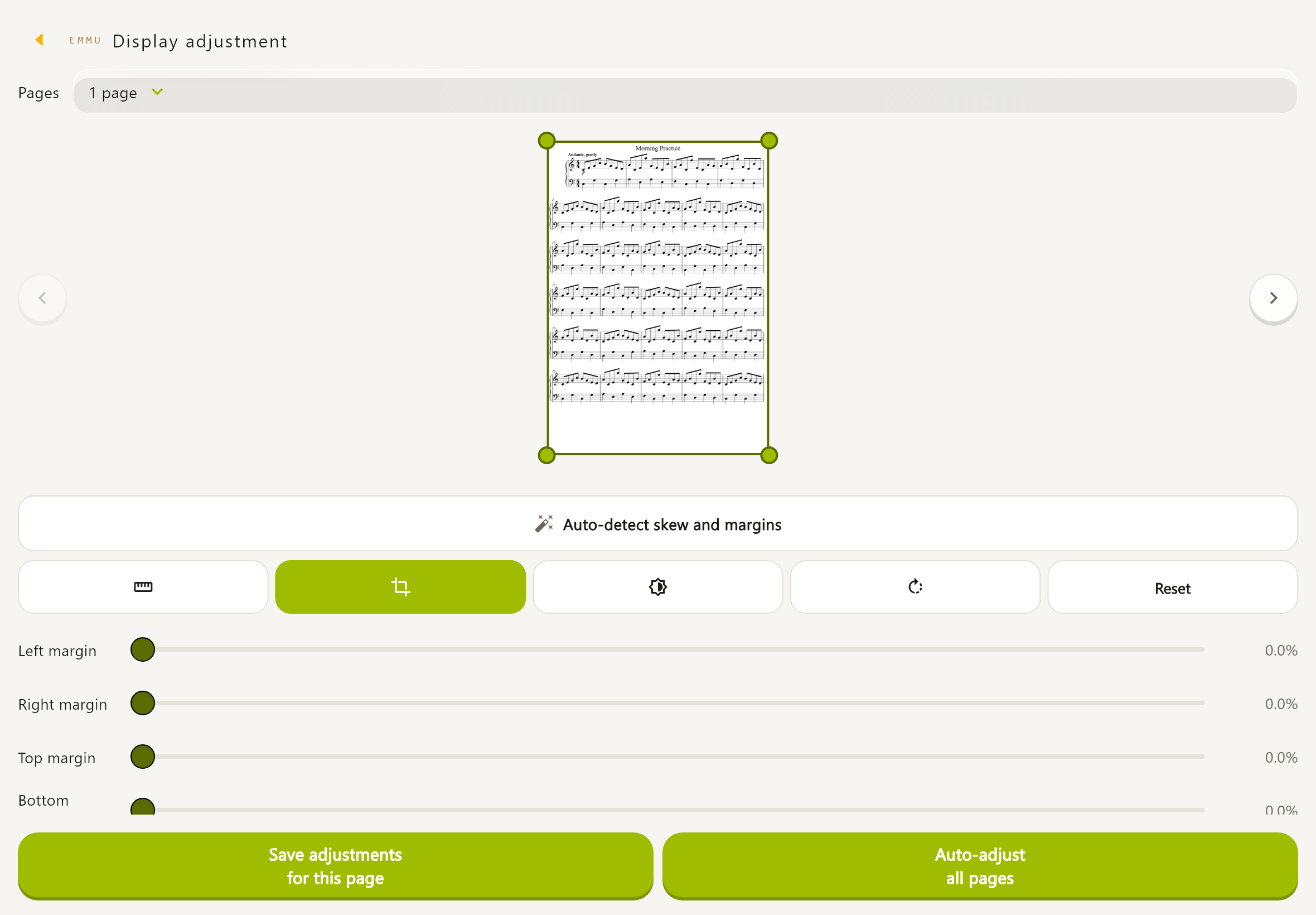
Adjust the display
- Open display adjustments in score details or display settings in the viewer.
- Adjust the top, bottom, left, and right margins, brightness, and contrast.
- For images, you can also straighten, correct perspective, and rotate 90 degrees clockwise. Perspective correction straightens a page photographed at an angle.
- Review the preview and save this page’s adjustments. To use the same settings throughout, apply them to all pages before saving.
Review automatic suggestions
Where available, review the automatic angle and margin suggestions or the adjustments for all pages before saving. Check that titles, lyrics, and symbols near page edges are still visible.
Keep in mindDisplay adjustments leave the source score unchanged and apply to viewing, PDF export, and printing. Going back before saving cancels changes; Reset removes adjustments. Image angle, perspective, and 90-degree corrections are for images.
Reduce image storage
For image scores, Optimize score size shows how much storage can be saved before you proceed. Display adjustments are retained.
Keep in mindOptimization replaces eligible source images with viewing images and deletes the originals. Keep the original files separately first if you need their original quality.
WRITE YOUR IDEAS
Put your practice notes on the page.
Add fingering, breathing marks, and lesson advice using handwriting, text, musical symbols, or stamps.
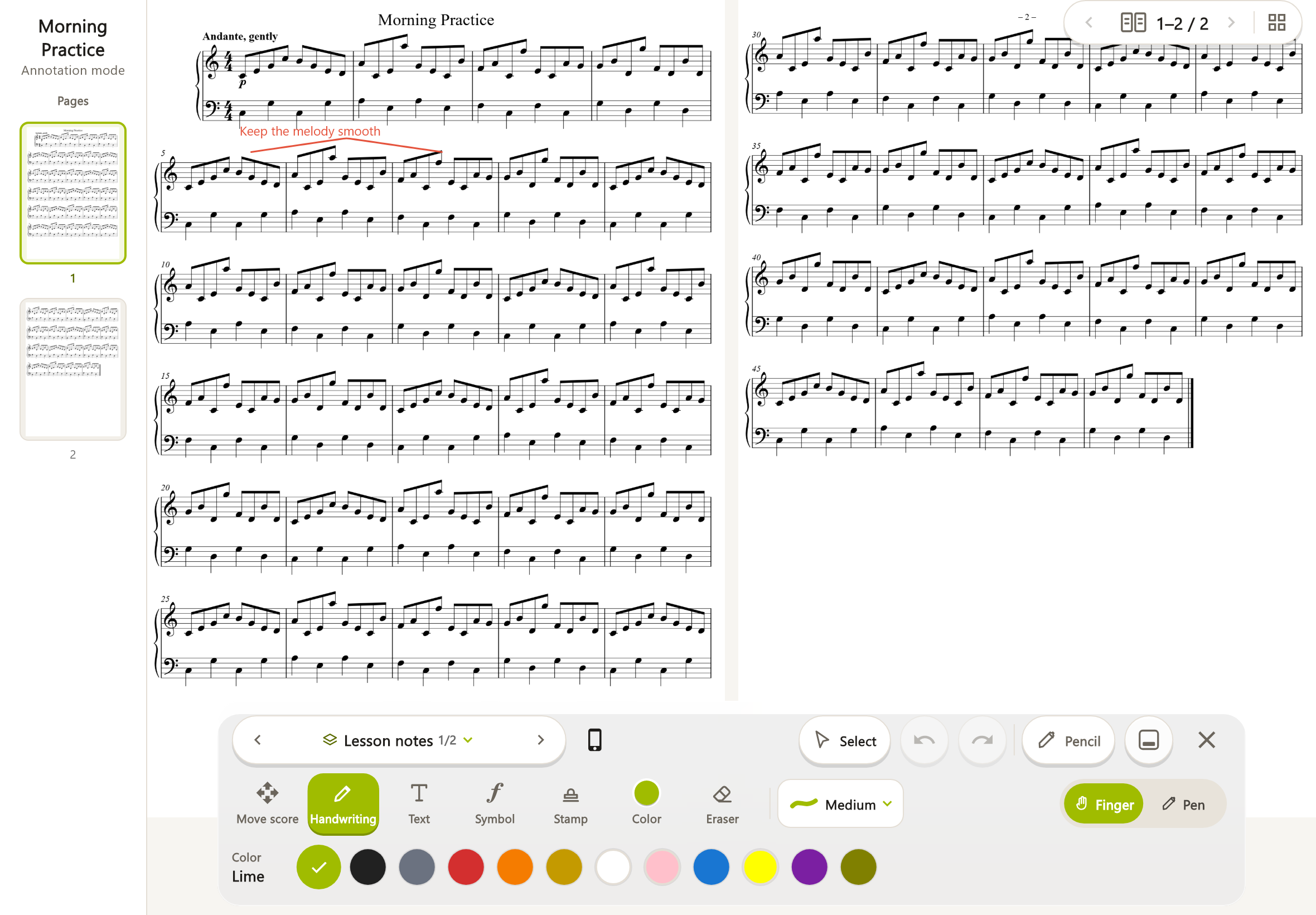
Start annotating
- Open one of your own scores and choose Annotate. Select an annotation set if needed.
- Choose a pen width and color, then write with your finger or a supported pen.
- Use Text for words, or choose Symbols and Stamps to place marks. Adjust text size and color as needed.
- Check that your changes are saved on this device before closing annotation mode.
Move, erase and undo
- Switch to score navigation to move the music and pinch to zoom.
- Select and move chooses an item. Drag empty space to select several items, or tap empty space to clear the selection.
- Choose an eraser size for partial erasing. You can also clear an entire page.
- Use Undo and Redo for recent actions. You can change the control panel position.
Switch between finger and pen input
Choose whether to write with a finger or a pen recognized by your device. Switch to score navigation when you want to move the page, to avoid accidental marks.
Saving and visibility
- Annotations save automatically on this device. Cloud sync is a separate status.
- If unsaved annotations are reported, try saving again and check the result.
- Hide annotations to see only the original score.
- MusicXML horizontal scrolling uses its own handwriting view. Do not treat its annotation positions as identical to page mode.
- Sample scores cannot be annotated. Import your own score.
ANNOTATION SETS
One set for lessons. Another for the stage.
Annotation sets keep separate layers of notes for one score. Switch between sets such as Lesson, Performance, and Review.
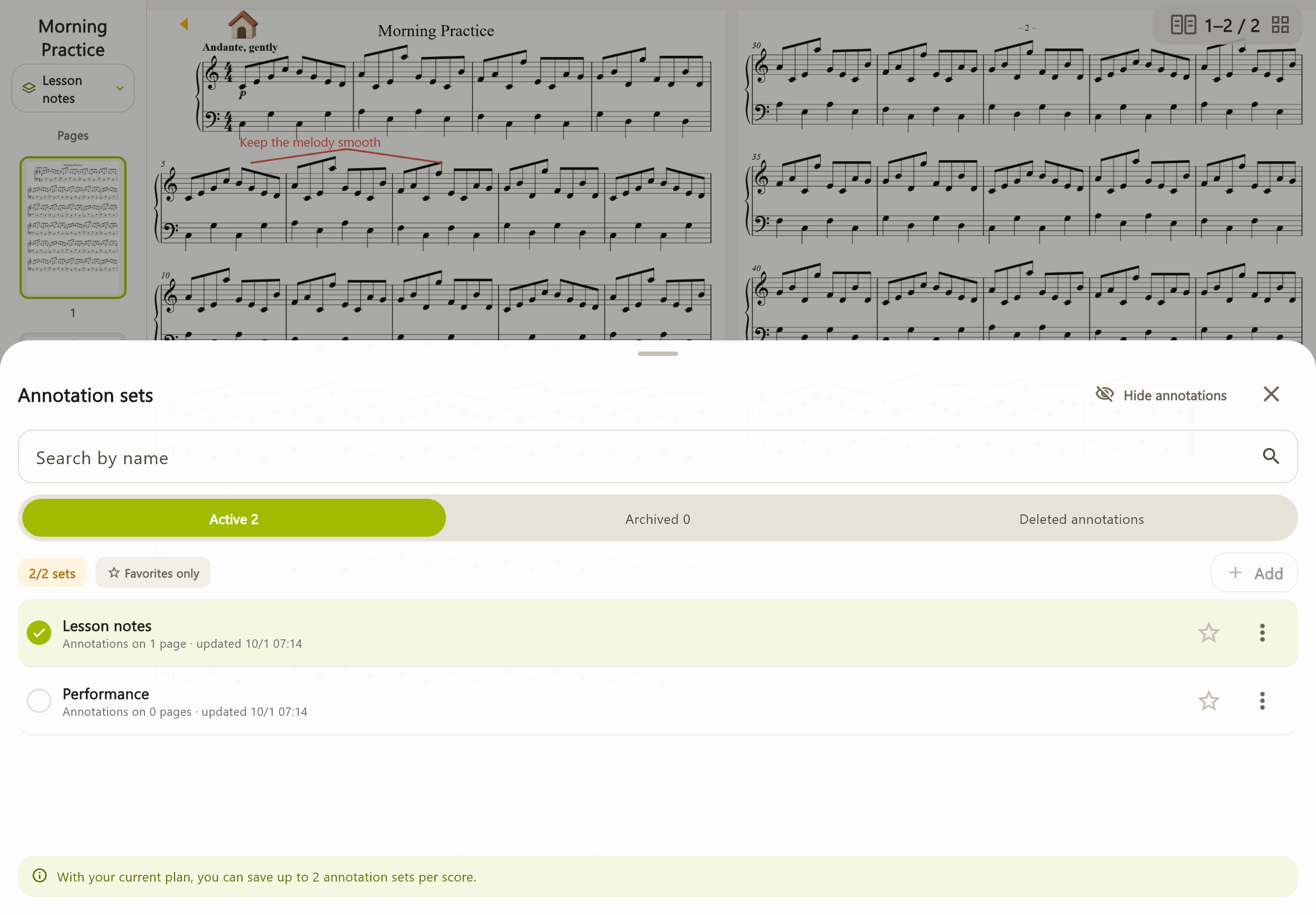
Create and switch sets
- Open Annotation sets and choose Add.
- Give the set a clear name of 1–30 characters. A new set starts empty on every page.
- Select a set from the list. Search by name or filter favorites.
- Use the additional actions to rename, duplicate, reorder, or delete sets.
Active and archived sets
Sets above your plan’s limit are archived rather than deleted. You can still view and export archived sets to PDF. Choose Use this set to select a set for active editing.
Keep in mindGuest, Free, and Standard allow 2 sets per score; Premium allows 50. Archived sets still count toward the creation limit. Delete unneeded sets to make room.
Restore deleted annotations
Deleted sets can be restored for 30 days from Deleted annotations. Clearing all pages also retains the previous annotations for 30 days. Permanent deletion cannot be undone. Changes to the source or page structure can prevent restoration to the original positions.
LISTEN & PRACTICE
Listen, follow and check.
Play MusicXML note data and adjust the tempo for practice. The keyboard display helps you see which notes are sounding.
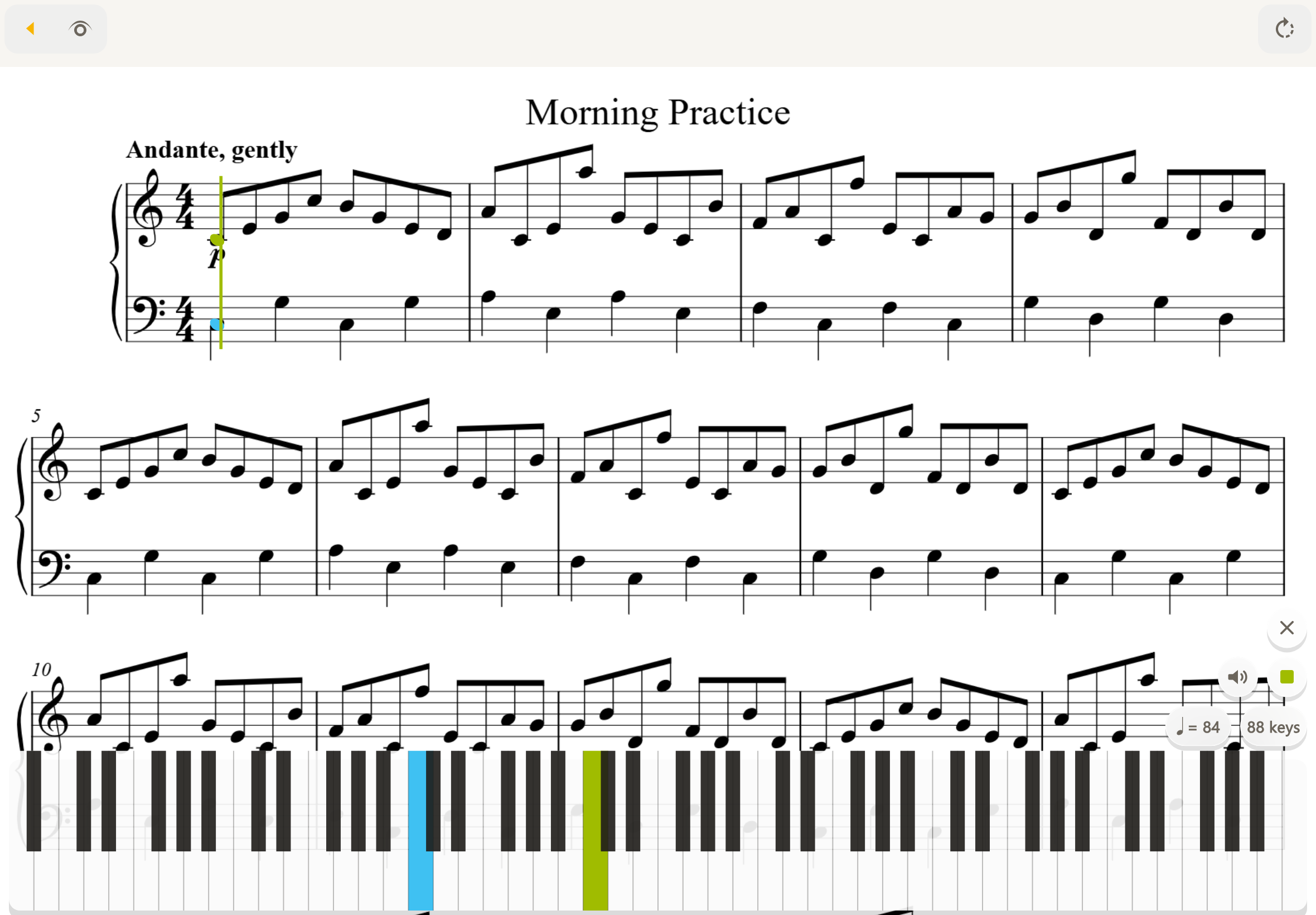
WATCH & PRACTICE
Practice on your phone without turning pages.
MusicXML is a score data format used between notation programs. With MusicXML, the score follows playback automatically even on a phone. Horizontal playback lets you focus on playing and practicing without manual page turns.
Play a score
- Open a MusicXML score and switch to playback mode.
- Wait for loading, then press Play. Use Stop to stop playback.
- Tap the tempo number to change the speed. BPM means beats per minute.
- Enable the metronome if needed. Mute switches the score audio on or off.
Follow the score and playback position
Switch between vertical and horizontal scrolling. Where measure navigation is shown, jump to the first or last measure or move in steps of 8 measures. Use the displayed and playing measure numbers to locate a practice passage.
Show the keyboard
Keyboard shows the notes currently playing. Choose 88, 76, 61, or 49 keys. The default is 88 on tablets and 61 on phones. This is a visual aid; tapping the keyboard does not play notes.
Change displayed parts
Choose Change displayed parts in score details. All parts from the original MusicXML are retained, but the layout changes and margin adjustments and reading position are reset.
Keep in mindAudio playback is available for MusicXML, not PDFs or photos. Some files contain notation that cannot be displayed or played. Sound, ties, and other playback details may differ from the source.
READY FOR THE STAGE
Keep your performance order together.
Arrange scores in the order you will use them. Keep recital programs, concert sets, or daily practice routines together.
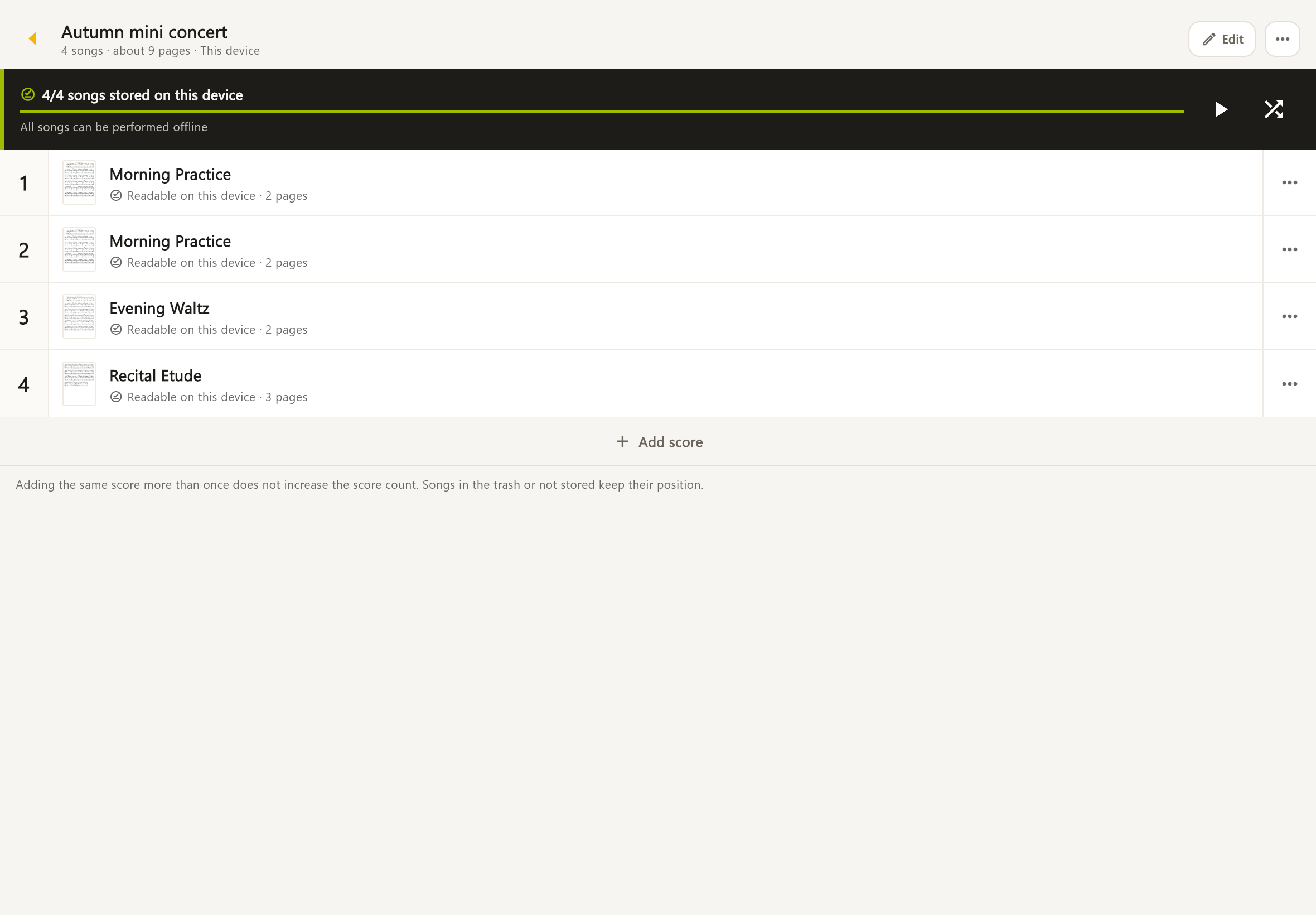
Create a list
- Open setlists, create a list, and give it a name.
- Add scores. You may include the same score more than once.
- Long-press to reorder items in editing mode. Remove unwanted items from the list.
- Choose Perform, Play from first score, or Shuffle. Move to the previous or next score during a performance.
Save all scores before you travel
Save all scores to the device and check that the whole list is available offline. Offline means without an internet connection. Open cloud-only scores in advance while connected.
Keep in mindPDFs and images are displayed in list order; audio playback requires MusicXML. Check password-protected scores and any items needing review beforehand.
List management and limits
Rename, search, and delete lists. You can have up to 100 lists with up to 300 items each. Repeating a score in a list does not increase your score count. Removing list items or deleting a list does not delete the scores themselves.
PDF & PRINT
Take your adjusted score to paper.
Save your adjusted score as a PDF or print it. Include just the annotation set you need.
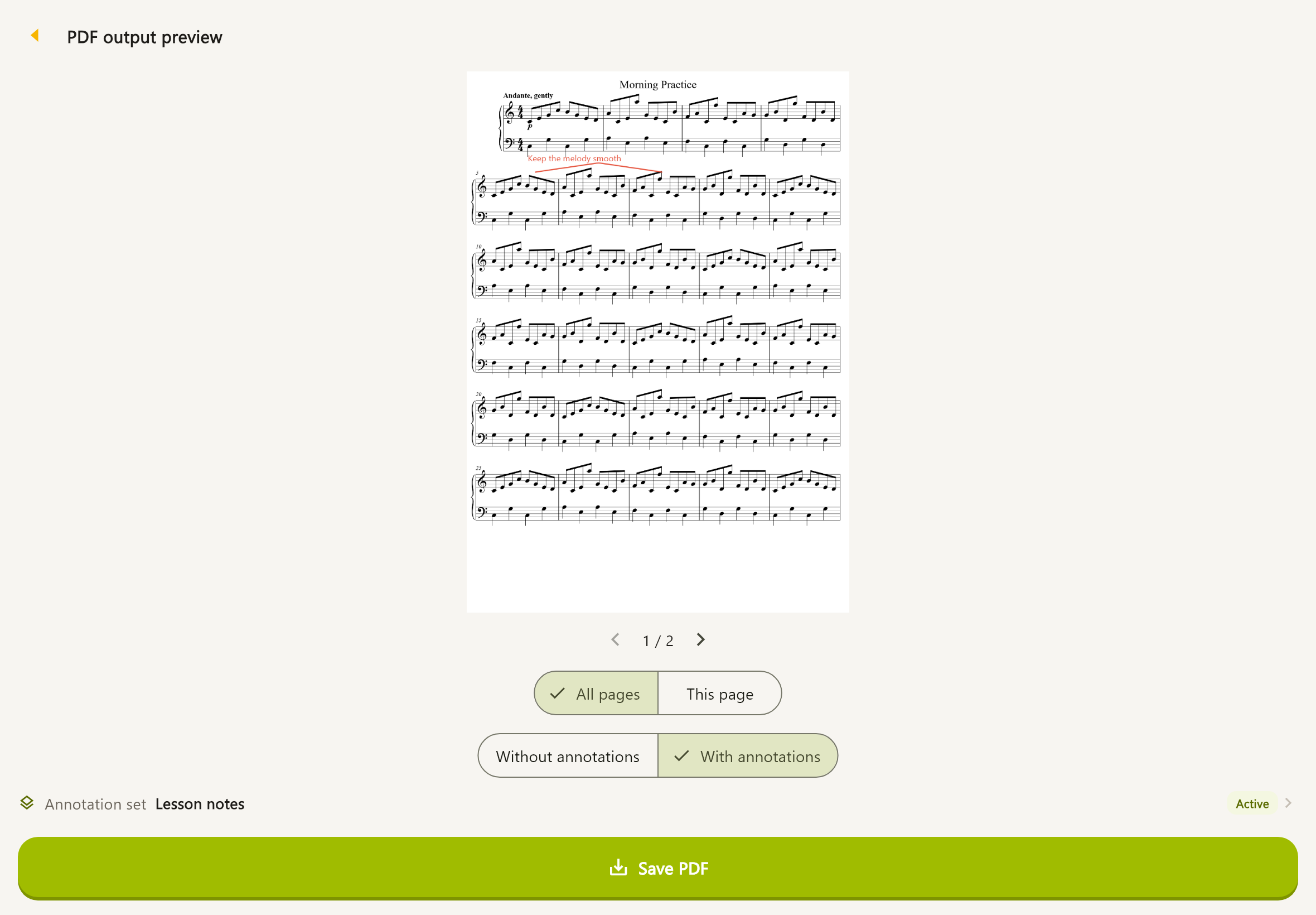
Save or print a PDF
- Open PDF export or Print in score details.
- Check the preview and choose all pages or the current page.
- Choose whether to include annotations. If included, choose the set to export.
- Choose a destination with Save PDF, or use Print to open your device’s print screen.
Check before exporting
- Display adjustments such as margins and brightness apply to the output. Check for clipped text or symbols.
- Archived annotation sets can also be exported to PDF.
- Printing requires a printer and printing support available to your device.
- Password-protected PDFs may need unlocking and appropriate permissions for viewing or exporting.
YOUR PRIVATE CLOUD
Your music, on your own devices.
Personal cloud is a paid feature that keeps scores aligned across devices registered to the same EMMU Score account. Sync sends and receives scores and changes between them.
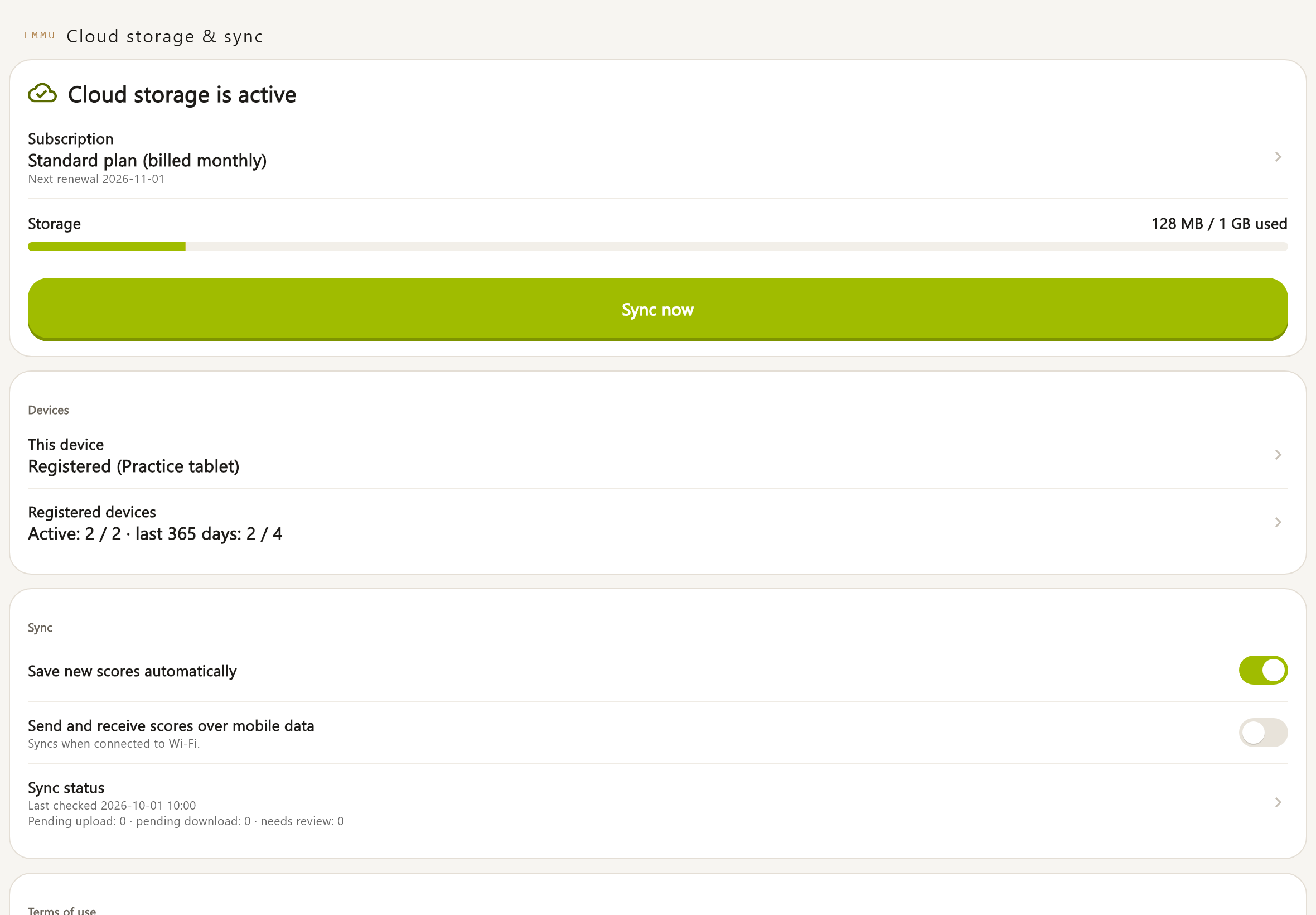
Set up cloud storage
- Register or sign in, then open Account & settings and Cloud storage & sync.
- Start cloud storage, select a plan, read the summary and full terms, and purchase through the store.
- Give the device a clear name and register it.
- Check which scores to save and start cloud storage and sync. If you left setup partway through, resume where you stopped.
Keep in mindRegistration and sign-in alone do not start cloud storage. You must accept the terms, subscribe, register the device, and start the first sync. The feature must also be available in your app.
Choose automatic saving and network access
- Enable automatic saving of new scores for automatic uploads. When off, changes wait on the device until you choose Sync now.
- Turn off mobile-data transfers to sync on Wi-Fi.
- Check pending uploads, downloads, and items needing review in sync status. Resolve storage or connection issues and retry.
- A cloud-only score needs a connection the first time you open it. Once downloaded, it can be viewed offline.
Changes on multiple devices
Changing the same score or list on multiple devices can produce a conflict: the app cannot automatically decide which change to keep. Compare the changes and choose the device version, cloud version, or both.
Sync annotations and switch editing devices
If another device is editing the same set, its name is shown. Choose to edit on this device to switch. Annotation conflicts can be resolved page by page. Previous annotations are retained for recovery for 30 days. Pages deferred until later do not sync until resolved.
Keep in mindCloud storage is personal. It is not an account-sharing or collaborative editing feature.
MOVE BETWEEN DEVICES
Move between your tablet and phone.
Use your tablet at home and your phone on the go. Sign in to the same account and register each device for cloud storage.
Use a new device
- Sign in with the same EMMU Score account and sign-in method.
- Check your subscription in cloud settings and register this device.
- Start sync and download your scores. Check that they open before giving up your old device.
Device names, deregistration and sign-out
Rename devices in the registered-device list. Deregistering an unused device stops sync and signs it out, while its stored scores remain. Signing out while keeping registration is a separate action.
Two device limits
- Concurrent registrations limit how many devices can be registered now. Remove unused devices to free a slot.
- The rolling 365-day limit counts devices registered during the past 365 days, including removed devices.
- A recognized re-registration or reinstall on the same device does not count as a new device. A reset or replacement device does.
- If a reinstall is incorrectly recognized as a new device, follow the option to register it as a reinstall. This declaration is available once per 365 days.
Free up device storage
For a score already saved to the cloud, remove its local download in score details. The cloud copy remains and can be downloaded the next time you open it. Downloading again requires a connection and valid access. This is different from moving a score to the trash.
FIND YOUR PLAN
Choose the space and devices you need.
Choose free local storage or a paid personal cloud plan. Check monthly prices and purchase conditions in the app and the store confirmation screen.
| Features | Try it outGuest | Keep scores on your deviceFree account | Your personal cloudStandard | Your personal cloudPremium |
|---|---|---|---|---|
| Scores you can store | 10 scores | 30 scores | No score-count limit | No score-count limit |
| Storage on each device | 100MB | 300MB | 1GB | 5GB |
| Cloud storage | — | — | 1GB | 5GB |
| Concurrent registered devices | — | — | 2 devices | 5 devices |
| Devices registered in 365 days | — | — | 4 devices | 8 devices |
| Annotation sets per score | 2 sets | 2 sets | 2 sets | 50 sets |
Paid plans are monthly. Check prices, availability, and terms in the purchase confirmation. There is no free trial.
Storage and score counts
Paid plans do not limit the number of scores; the storage quota applies instead. Cloud usage includes scores, annotations, and trash. Each device has the same storage allowance as the plan, and must also have enough free physical space.
Check or change your subscription
- Open your subscription and plan in cloud settings.
- Select the new plan and check its price and effective date in the store where you purchased it.
- If a purchase is missing, restore purchases using the same store account.
- To cancel, open subscription management in the original App Store or Google Play account. A subscription is a recurring paid plan.
Keep in mindPausing cloud storage, signing out, uninstalling, or deleting your account does not automatically cancel the store subscription. Manage it separately in the original store.
When you change to a smaller plan
If you exceed the device limit, select which devices keep syncing. Uploads beyond the storage limit wait. Excess annotation sets are archived but remain viewable and exportable. Follow the on-screen instructions.
After a subscription ends
For 30 days after expiry, devices registered before expiry can download cloud scores. The scores then spend another 30 days in cloud trash before deletion. Your actual deadlines are displayed in the app.
Keep in mindNew devices and devices requiring re-registration need a renewed subscription, even during the download grace period. Free-account limits apply locally: the latest 30 scores and 300 MB. Excess scores remain listed but cannot be opened. Check downloads and backups while your subscription is active.
KEEP YOUR MUSIC
Keep a copy you can hold onto.
A backup stores scores and their management information in a file. Create it when needed, separately from cloud sync.
Create a backup
- Sign in and open Account & settings, then Manage EMMU Score account.
- Open score backups, choose Create backup, and select the scores.
- Store the exported .emmuscore file somewhere you can find it. Keep a copy away from this device in case it is lost.
Keep in mindA connection is required to verify your account. Backups can be up to 2 GiB (about 2 GB). Check the selection, destination space, and successful completion.
Restore a backup
- Sign in to the same account that created the backup.
- Choose Restore from backup and open the .emmuscore file.
- Choose what to restore, review the details, and proceed. Password-protected PDFs may ask for a password.
- Open the scores and check their display and annotations. Identical scores already stored are not added twice.
Keep in mindBackups from another account and ordinary ZIP files cannot be restored. Your current plan limits and free device space apply.
Restore scores or lists from trash
Open Trash in the score library or setlists, select an item, and restore it. Scores and lists remain restorable for 30 days. Deleting a list leaves its scores intact.
Keep in mindPermanent deletion and emptying score trash cannot be undone. Deletion includes score files, adjustments, and annotations. Trashed scores still use storage. Restore annotation sets separately from Deleted annotations.
MAKE IT YOURS
Your account. Your everyday settings.
Register with Apple, Google, or email. Choose this device’s appearance and language, and manage sign-in methods and devices in account settings.
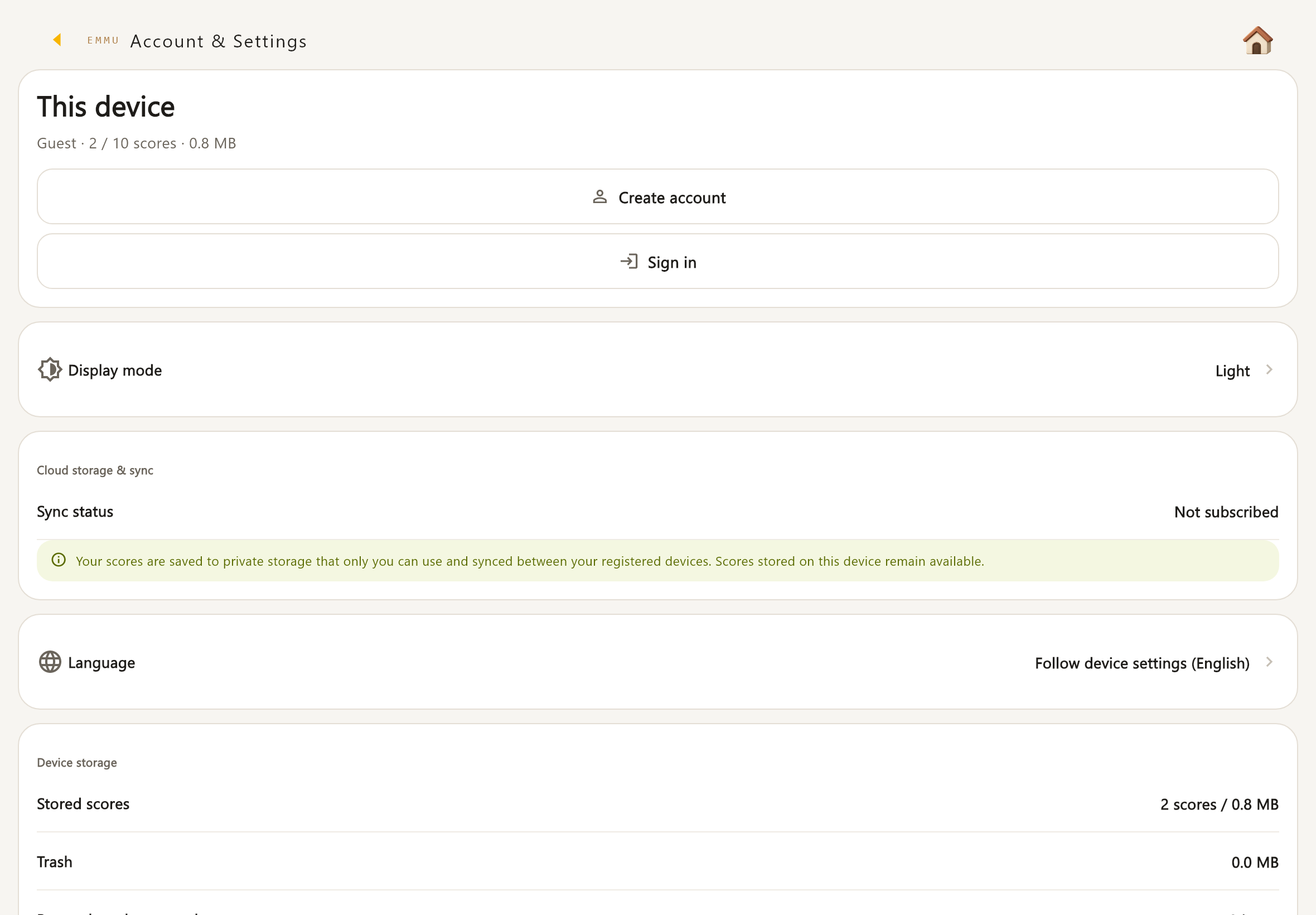
Register, sign in and transfer guest scores
- Open Account and choose registration or sign-in. Use the method associated with your existing account.
- For email registration, enter your email, the six-digit verification code, a password, and review the terms.
- Select guest scores to transfer to your account. Unselected scores remain in guest storage.
- If you use cloud storage, you can choose to transfer scores there, or keep them only on this device.
Keep in mindUse your EMMU Score account. This guide does not describe account linking with the main EMMU app as an available feature. Use Forgot password if needed.
Appearance, language and PDF passwords
- Choose light, dark, or system appearance.
- Choose the device language or a supported app language. The choice is stored on this device.
- Device storage shows score counts, capacity, and trash.
- Forget individual PDF passwords or clear all saved PDF passwords.
- You can also view terms, policies, licenses, and the app version.
Sign-in methods and sessions
View, copy, or change your registration ID; add or remove Apple, Google, or email sign-in; and change your email or password. You cannot remove the last sign-in method. Important changes require identity verification. You can end sessions on other devices individually or together.
Sign out, pause cloud storage or delete your account
- Account scores stay on the device after sign-out and become available when the same account signs in again. Saved PDF passwords are cleared.
- If changes have not been uploaded, choose to sync before signing out or leave them pending on the device.
- Pausing cloud storage stops transfers on every device. It does not delete cloud scores or stop billing. Resuming requires identity verification and a terms review.
- Account deletion requires identity verification and a review of the data to be deleted. If server deletion continues in the background, check the displayed request status. Save needed data first.
- Deleting your account does not cancel the store subscription. Cancel it separately in the store.
WHEN YOU NEED HELP
Find your next step when something goes wrong.
If a score is missing, sound is silent, or sync is not working, check the status shown in the app and try the steps below.
I cannot find an imported score
Clear searches and filters, including tags and favorites. Check whether you selected device/guest storage or the account library. Guest scores not transferred to your account remain in guest storage. Also check the trash.
Can I play audio from a photo or PDF?
Audio playback requires MusicXML. PDFs and images support viewing, annotations, display adjustments, PDF export, and printing. The app does not recognize notes in photos or convert them to MusicXML.
MusicXML playback is silent
Wait for loading, enter playback mode, press Play, and check that Mute is off. Check device volume and audio output, including connected headphones. Some files contain unsupported display or playback content.
My scores are not reaching another device
Check the account, subscription, device registration, and whether initial sync has started. Check Wi-Fi/mobile-data settings, available storage, pending transfers, and conflicts in sync status, then try Sync now.
Does registering an account start sharing?
No. Cross-device sync needs a paid plan, acceptance of the terms, device registration, and starting sync. Cloud storage is personal; it is not a way to distribute scores to other people.
Can I use the app offline?
Scores already saved on the device can be viewed offline. Initial cloud downloads, sync, account actions, and backup account verification require a connection. Before performing, download your scores and check that they open in airplane mode.
When the operator requests a review
Open cloud settings to check the request, scope, and deadline. Verify your identity if required, then accept or decline. You can withdraw consent later.